Using the card
Choose a program and days
The tabs at the top switch between the programs (zone 1, hot water, circulation …). A dot on a tab marks unsaved changes. Each program keeps its own changes until you apply or discard them.
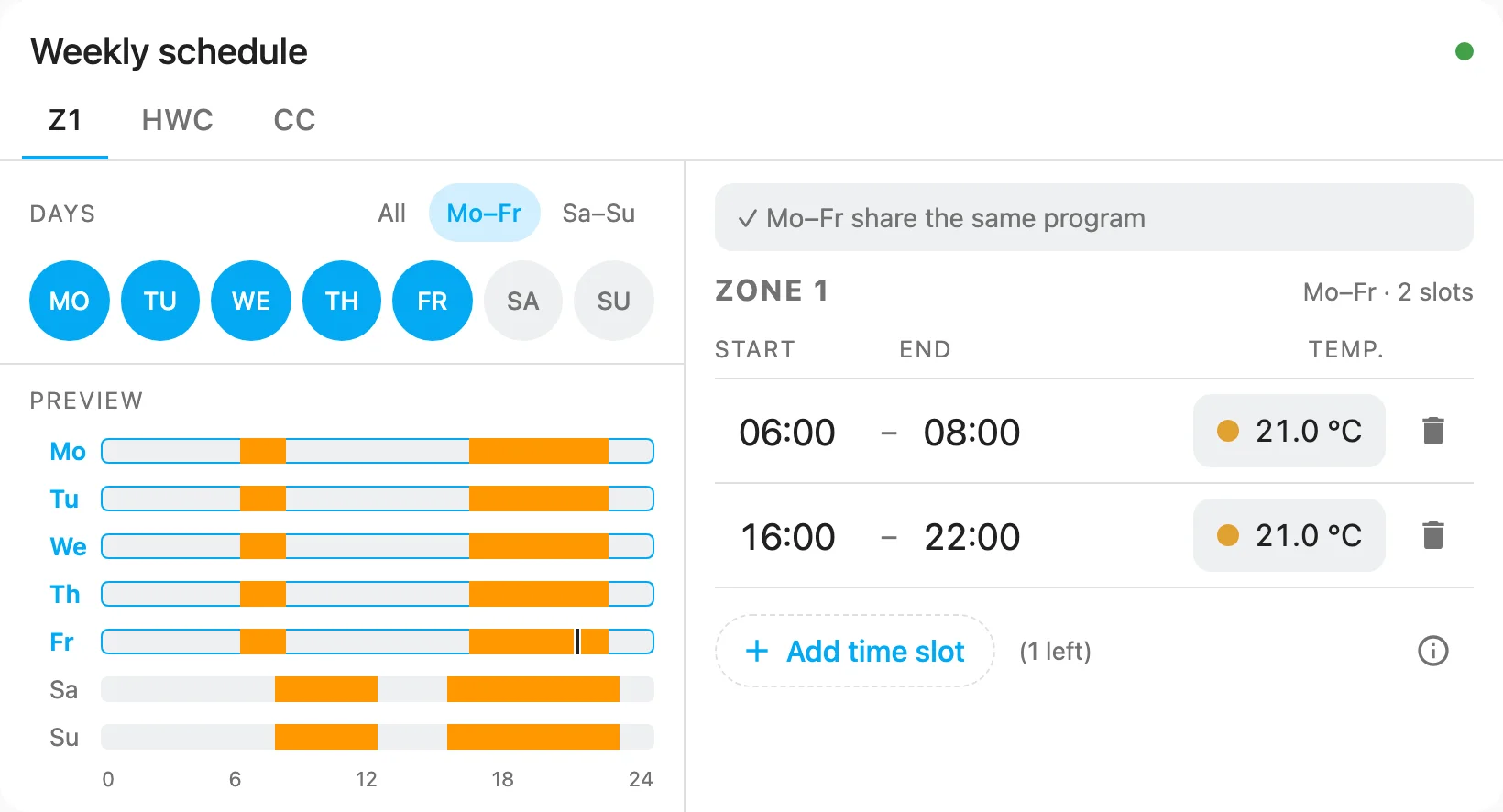
Below the tabs you select the days to edit: tap single days, or use All, Mo–Fr and Sa–Su. Which days
are selected when the card opens is set with default_days.
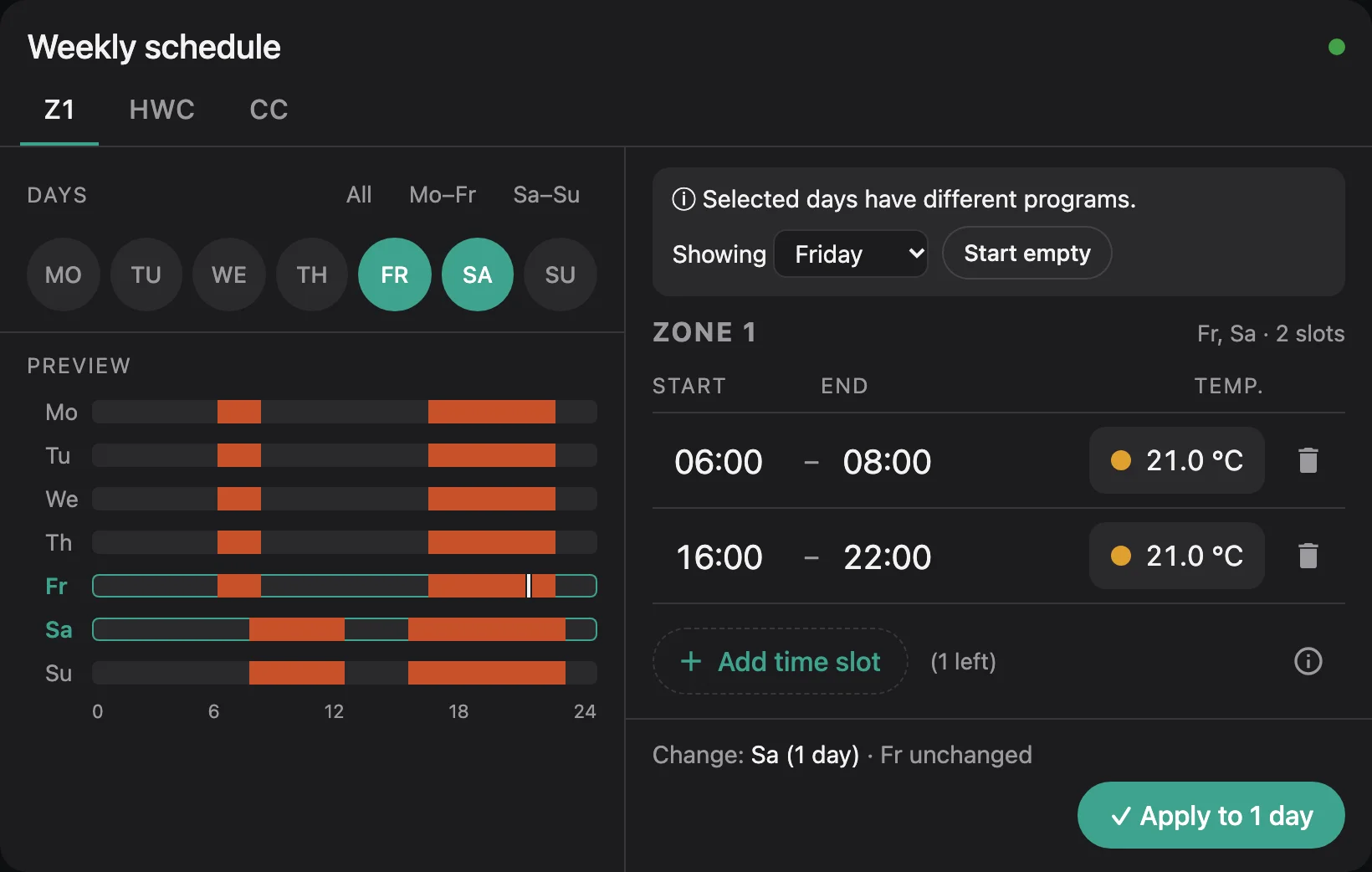
If all selected days have the same program, the card says so and shows it. If they differ, it tells you and shows the program of one of them; pick which day to start from, or Start empty. Whatever you apply is written to all selected days.
Edit time slots
Each day has up to 3 slots. Times are on the controller's 10-minute grid, 24:00 is allowed as an end time.
- Tap a time to change it: hours and minutes with arrows, or ±10 minutes. The keyboard works too.
- Tap a temperature (zones and hot water) to change it in steps of 0.5 °C.
- Add time slot adds a one-hour slot an hour after the last one (or in the first free gap), with the temperature of the last slot. The number in brackets is how many slots are left.
- The bin deletes a slot.
- ⓘ explains what happens outside the slots. For a zone it opens a dialog where you can change the set-back temperature it heats to outside the slots; Save writes it to the controller right away.
| Program | Temperature per slot | Outside the slots |
|---|---|---|
| Zones | 5–30 °C | heats to the set-back temperature |
| Hot water | 35–70 °C | water is not reheated |
| Circulation | – | pump is off |
The card checks the slots while you type:
| Check | Effect |
|---|---|
Overlapping slots, end before start, start at 24:00, time not on the 10-minute grid |
Error, apply is blocked |
| Temperature missing or outside the range | Error, apply is blocked |
| Temperature not on a 0.5 °C step | Warning, rounded when saving |
| Zone below 15 °C | Warning, in case it was a typo |
| Two slots touch and have the same temperature | Hint that they could be merged |
The week preview shows the result immediately, with the selected days highlighted and a line for the current time.
Apply
The bar at the bottom shows what will change, e.g. Change: Sa (1 day) · Fr unchanged: days whose program already matches are not written again. Discard drops your changes, Apply to n days writes them.
Writing goes day by day:
- The card publishes the day's slots to ebusd (
…Timer_<Day>/set). - It asks ebusd to read the day back from the controller.
- It compares the result with what it wrote. Only then the day counts as done.
The card shows each day as queued, writing, verifying, done, failed or not written. Cancel after this day stops cleanly after the day being written.
When all days are done the card reports Saved – confirmed by the controller. If a day doesn't match or the
controller doesn't answer within verify_timeout seconds, the card stops and shows the reason:
- Retry writes all days that are not confirmed yet, starting with the failed one.
- Restore previous writes the program as it was before back to the days already touched.
After Cancel after this day, Continue writes the remaining days, and Restore previous undoes the written ones.
Keep the page open
The browser writes to the controller, not Home Assistant. If you close the page during a write, the remaining days stay unchanged; the browser warns you before leaving. Only one card on a page writes at a time: a second card asks you to try again when the first one is done.
Preview mode
With mode: preview the card is a compact, read-only week chart, e.g. for an overview dashboard. Tap or hover over a
day to see its slots and temperatures below the chart; today is shown by default.
type: custom:ebusd-time-program-card
mode: preview
stacked: true      # all programs below each other instead of tabs
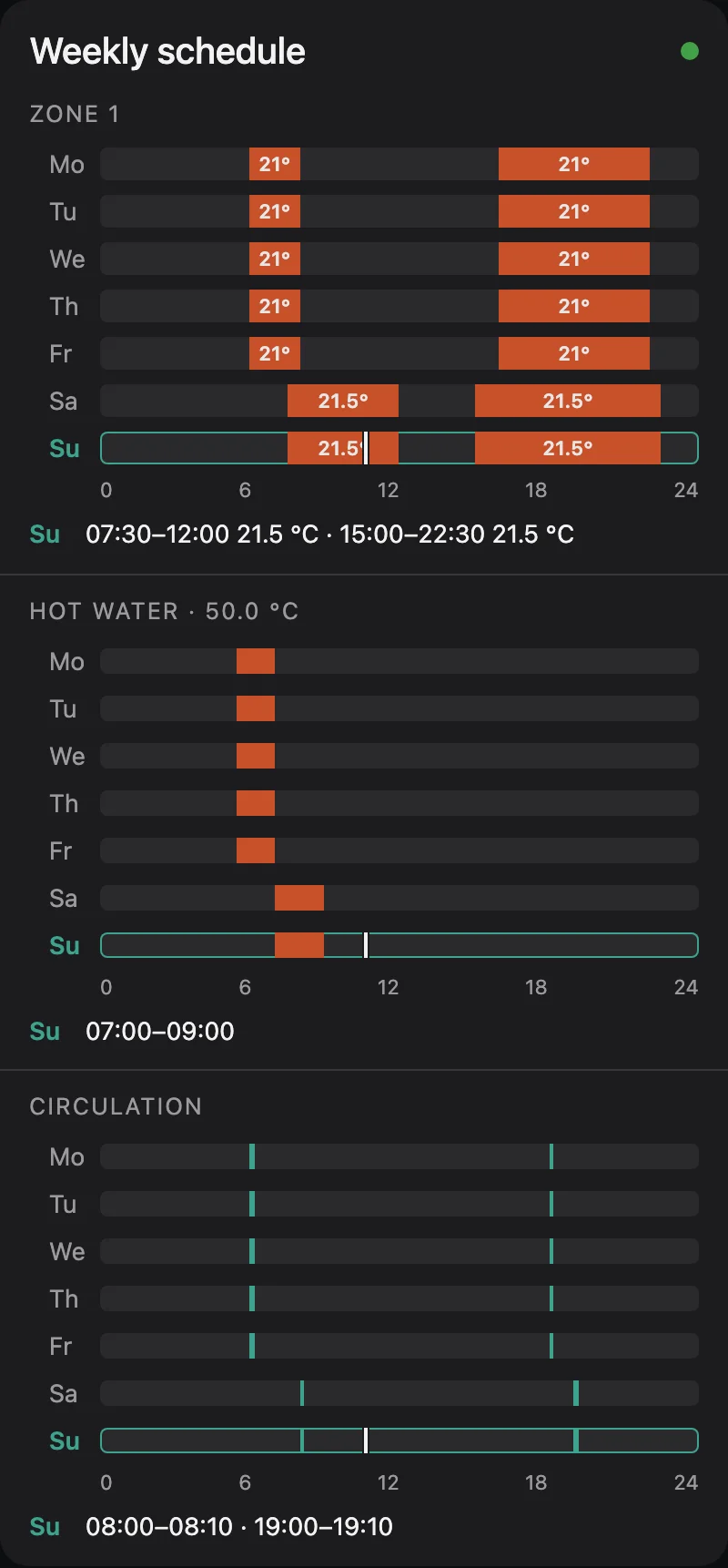
If all slots of a program have the same temperature it is shown once in the heading (Hot water · 50.0 °C);
otherwise slots of 90 minutes or more show their temperature inside the bar. Change this with
temp_labels.
For a small glance card, show only today, or today and tomorrow, and leave out the written slots:
type: custom:ebusd-time-program-card
mode: preview
stacked: true
preview_days: today_tomorrow   # or: today
preview_label: false           # only the bars; hover a bar for its times
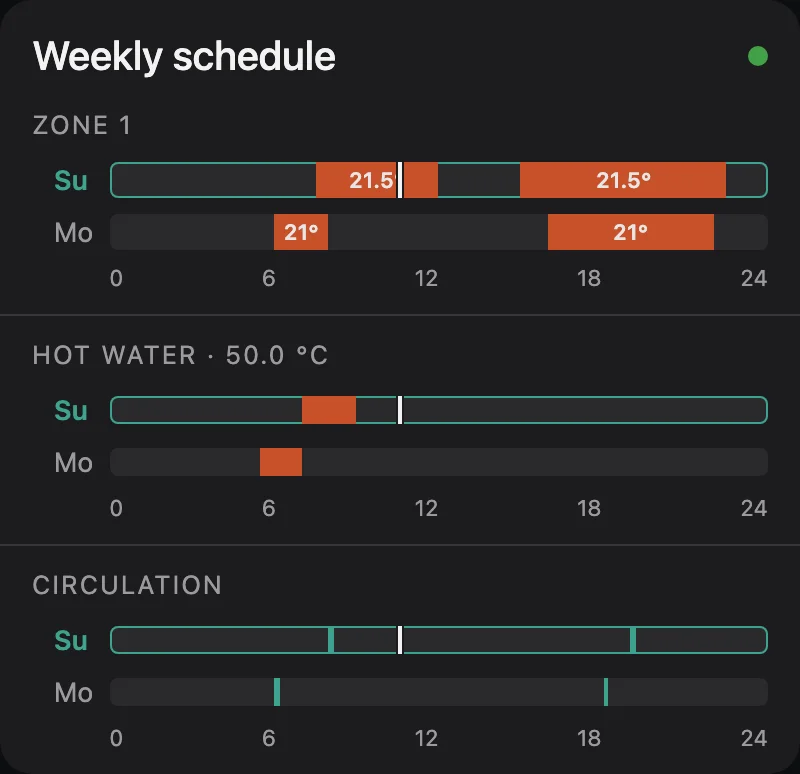
The rows move on at midnight. Without the label line, the times are only visible by hovering, so keep
preview_label: true on dashboards used on phones.
Layout and look
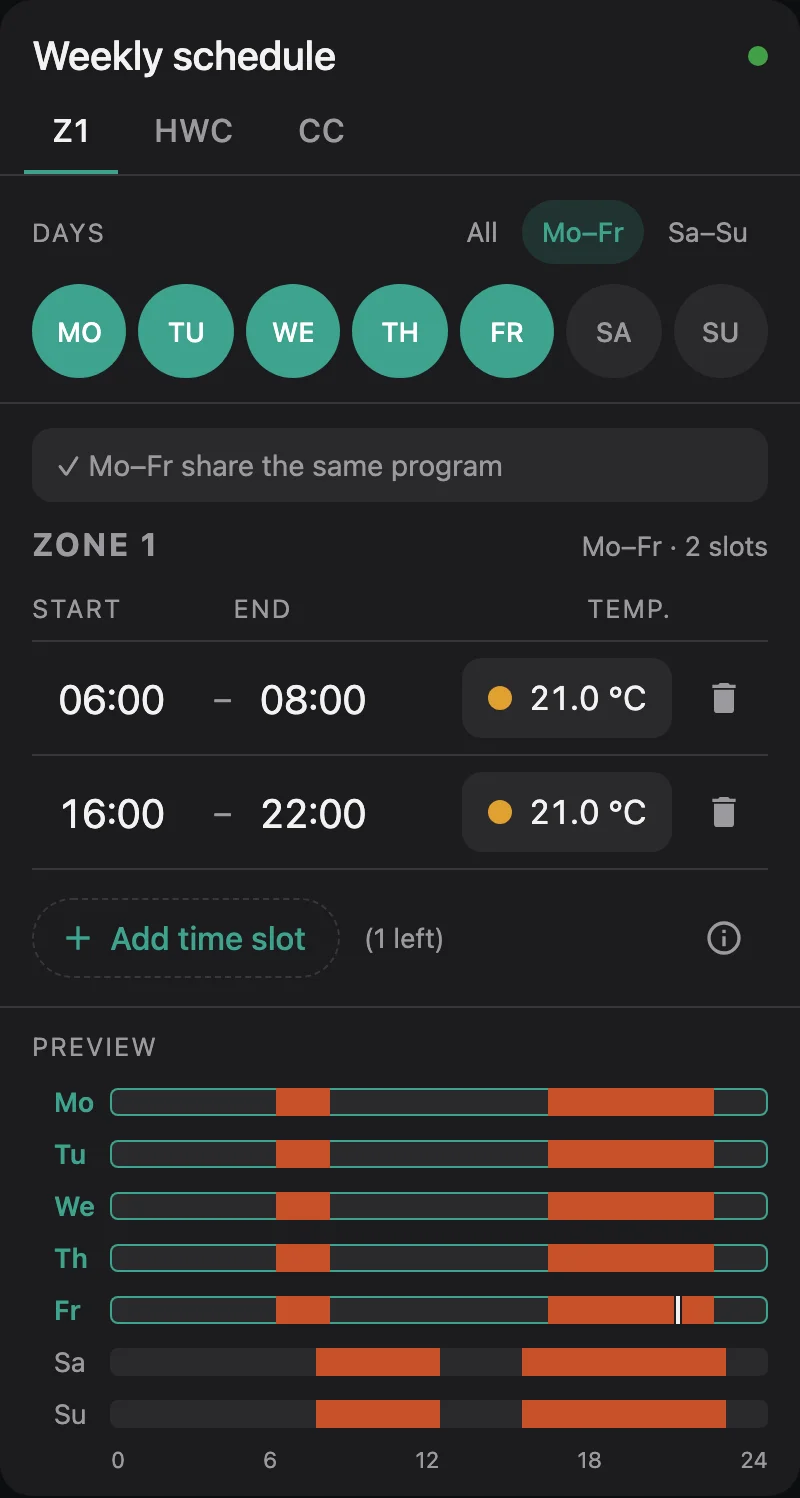
On wide dashboards (card width from 720 px) the card uses two columns, on phones one. Force either with
layout: wide or layout: narrow.
theme: brand (default) is the card's own dark design with teal accents and red heating times.
theme: default follows your Home Assistant theme and uses its primary and accent colours. Any accent colour can
be set with accent.
layout: narrow |
theme: default with a light Home Assistant theme |
|---|---|
 |
 |